
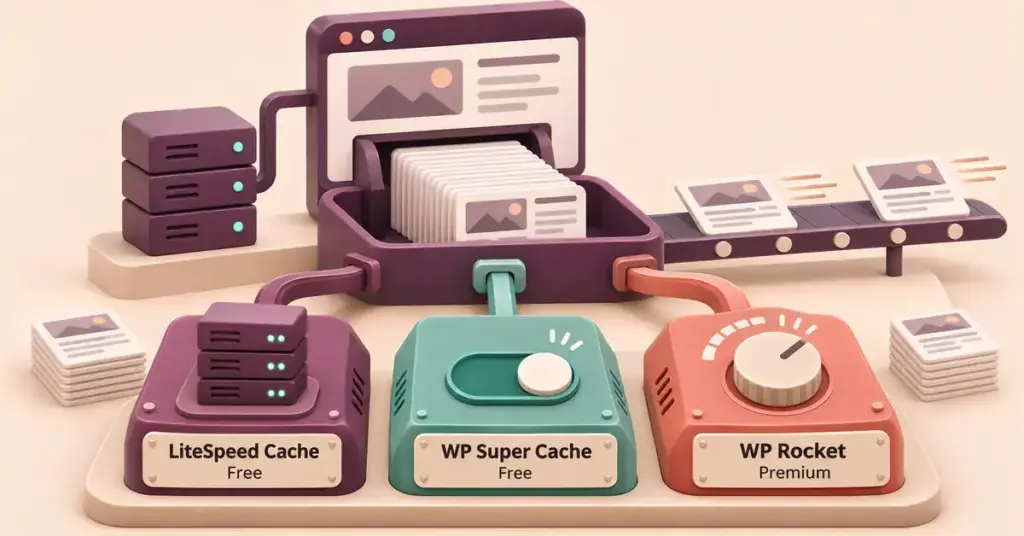
There is no single best WordPress caching plugin: the right one depends on your web server and how much you want to tune settings. As a quick steer, if your host runs a LiteSpeed server then LiteSpeed Cache is hard to beat; on standard Apache or Nginx hosting WP Super Cache is the simple free choice; and if you would rather install once and never think about it again, WP Rocket is the set-and-forget paid option. The comparison and notes below explain how the main free and premium plugins differ, so you can match one to your site, your host and your skill level. We do not sell any of these plugins; the aim is simply to help you choose.
The main WordPress caching plugins compared
The table below sets the most widely used plugins side by side on the same attributes. Below it, short notes explain where each one fits.
Caching Plugin Comparison
| Plugin | Cost | Works best with | Notable strength |
|---|---|---|---|
| LiteSpeed Cache | Free | LiteSpeed / OpenLiteSpeed servers | Very fast server-level caching, plus image and database tools |
| WP Super Cache | Free | Standard Apache / Nginx hosting | Simple, reliable static-HTML caching from Automattic |
| W3 Total Cache | Free + premium | Users who want fine control | Broadest feature set: page, object, database and browser caching |
| WP Fastest Cache | Free + premium | Beginners wanting quick results | Plain on/off toggles with little setup |
| WP-Optimize | Free + premium | All-in-one upkeep | Caching combined with database cleanup and image compression |
| Cache Enabler | Free | Minimalists | Lightweight static-HTML caching with few settings |
| WP Rocket | Premium | Set-and-forget users | Most optimisations applied automatically on activation |
| FlyingPress | Premium | Speed without hands-on tuning | Cloud-assisted asset and image optimisation |
| NitroPack | Premium (subscription) | Any host, hands-off | Cloud optimisation with a built-in CDN, host-independent |
LiteSpeed Cache
Free and open source, made by LiteSpeed Technologies and installed on more than seven million sites. It delivers very fast server-level caching, but its full power is only available when your site runs on a LiteSpeed or OpenLiteSpeed web server — ask your host whether you are on one. On other servers it still works and can use the company’s QUIC.cloud service for a content delivery network (CDN) and image optimisation. It also bundles database and image tools, so it is a strong all-in-one option for the right environment.
WP Super Cache
Free and maintained by Automattic, the company behind WordPress.com, with more than a million active installs. It works by generating static HTML files that bypass PHP for most visitors. A beginner-friendly “simple” mode gets you going quickly, while an “expert” mode offers more control. It is lightweight and reliable on standard Apache and Nginx hosting.
W3 Total Cache
Free with a paid Pro tier, developed by BoldGrid and used on hundreds of thousands of sites. It has one of the broadest feature sets — page, object, database and browser caching plus CDN integration — which also makes it the most complex to configure. It suits users who want fine-grained control and are comfortable testing settings.
WP Fastest Cache
Free with a premium upgrade, built by developer Emre Vona and active on more than a million sites. Its appeal is simplicity: most features are plain on/off toggles. The paid version adds extras such as mobile-specific caching, lazy loading and the ability to delay JavaScript. A good middle ground for people who want results without a long setup.
WP-Optimize
Free with a premium tier, made by the Team Updraft developers and installed on over a million sites. It is unusual in combining page caching with database cleanup and image compression in one plugin, so it doubles as a housekeeping tool. If you like keeping upkeep in one place, pair it with a regular WordPress maintenance checklist so the database stays tidy over time.
Cache Enabler
Free and open source, made by KeyCDN and installed on more than a hundred thousand sites. It is deliberately minimal: it creates static HTML files with very few settings to worry about. If you want the core benefit of page caching and nothing to fiddle with, it is one of the lightest choices available.
WP Rocket (premium)
WP Rocket is a paid plugin with no permanent free version, though a time-limited free trial is offered. Its selling point is that it applies most optimisations automatically on activation, which makes it popular with people who want a set-and-forget option and do not want to tune settings by hand.
FlyingPress and NitroPack (premium)
FlyingPress is a paid plugin focused on page and asset optimisation, with cloud-assisted features such as image compression and critical CSS generation to take load off your own server. NitroPack takes the cloud idea further: it is a subscription service (owned by WP Engine) that optimises copies of your files on its own infrastructure and serves them through a built-in CDN, so it works largely independently of your host. Both aim at speed without hands-on configuration, at a recurring cost.
What a caching plugin actually does
Every time someone visits a normal WordPress page, the server builds that page from scratch: PHP (the programming language WordPress runs on) assembles the content, and a database (usually MySQL or MariaDB) is queried for your posts and settings. That work takes time on every single visit. Caching stores a ready-made copy of the result so the server can hand it straight to the next visitor instead of rebuilding it.
Most plugins combine several kinds of caching and optimisation:
- Page caching — saves a finished, static HTML copy of each page so PHP and the database are skipped for repeat visitors. This is the biggest single speed win.
- Browser caching — tells a visitor’s browser to keep images, stylesheets and scripts locally, so they are not downloaded again on the next page.
- Object caching — stores the results of repeated database queries, often using Redis or Memcached on the server. It helps busy, dynamic sites more than simple brochure sites.
- File optimisation — minifying (shrinking) CSS and JavaScript, combining or deferring scripts, and lazy loading images so they load only when scrolled into view.
The reason this matters for search is Google’s Core Web Vitals, a set of real-world speed and stability measures. Google’s own web.dev documentation defines three: Largest Contentful Paint (LCP), which measures loading and should happen within about 2.5 seconds; Interaction to Next Paint (INP), which measures responsiveness and should stay at or below 200 milliseconds; and Cumulative Layout Shift (CLS), which measures visual stability and should stay at or below 0.1. Page caching mainly improves server response time and LCP, while file optimisation can help the others.
One honest point: a caching plugin hides slow hosting, it does not cure it. If pages stay sluggish with caching switched on, the real fix is usually better WordPress hosting in New Zealand, not another plugin.
How to choose the right one for your site
There is no single best caching plugin, because the right choice depends on four things.
- Your server type. If your host runs LiteSpeed, LiteSpeed Cache is hard to beat because the caching happens at server level. On other servers, a general-purpose plugin is the better fit. Our guide to high-performance WordPress hosting explains how server hardware and software affect speed.
- Your comfort with settings. If you want to install and forget, lean towards WP Rocket, WP Fastest Cache or a cloud service. If you enjoy tuning every option, W3 Total Cache or LiteSpeed Cache give you more levers.
- Free versus paid. The free plugins above are genuinely capable; paid tools mainly buy convenience, automation and support rather than a different ceiling on speed.
- Your host’s own caching. Many managed hosts cache at server level already, and some ask you not to add a page-caching plugin on top. Check first — our WordPress hosting comparison covers what different plans include.
If you run a shop or membership site, dynamic pages such as the cart, checkout and account areas must be excluded from page caching, or logged-in visitors may see each other’s details. Most plugins exclude these automatically, but it is worth confirming.
Before you install a caching plugin
Caching changes how every page is served, so a little preparation avoids surprises. Work through the short checklist below, and always back up your WordPress site before you activate anything new.
Before You Install a Caching Plugin
- Check whether your host already caches at server level — managed hosts often do.
- Install only one caching plugin at a time.
- Make a full backup before you activate it.
- Record your starting speed with a tool such as PageSpeed Insights, so you can measure the change.
- Turn on page caching first, then add optimisations one at a time.
- Exclude cart, checkout, account and other logged-in pages from the cache.
- Clear the cache and retest after each change.
- Check the site on mobile and in a private browser window to catch broken layouts.
Sources
- WordPress.org — LiteSpeed Cache plugin page
- WordPress.org — WP Super Cache plugin page
- WordPress.org — W3 Total Cache plugin page
- WordPress.org — WP Fastest Cache plugin page
- WordPress.org — WP-Optimize plugin page
- WordPress.org — Cache Enabler plugin page
- WP Rocket — official site
- WP Rocket — features page
- FlyingPress — official site
- NitroPack — official site
- web.dev — Web Vitals (Core Web Vitals: LCP, INP, CLS)
Frequently Asked Questions (FAQ)
Do I still need a caching plugin if my host already caches?
Often not. Many managed WordPress hosts cache at server level, which is faster than a plugin and already switched on. Check your host’s documentation first; if full-page caching is handled for you, adding a page-caching plugin can cause conflicts rather than help. You may still want a plugin only for file optimisation such as minifying scripts.
Is LiteSpeed Cache free, and can I use it on any host?
The plugin is free and open source. You can install it anywhere, but its server-level caching only works fully when your site runs on a LiteSpeed or OpenLiteSpeed web server. On other servers it still provides optimisation features and can use the QUIC.cloud service, so it is worth confirming your server type with your host.
Which caching plugin is best for a WooCommerce store?
Any of the main plugins can work with WooCommerce. The key point is the one covered earlier under choosing a plugin: the cart, checkout and account pages must stay out of the page cache so customers never see one another’s session. Beyond that, stores benefit most from object caching for repeated database queries, so a plugin or host that supports Redis or Memcached is a practical priority.