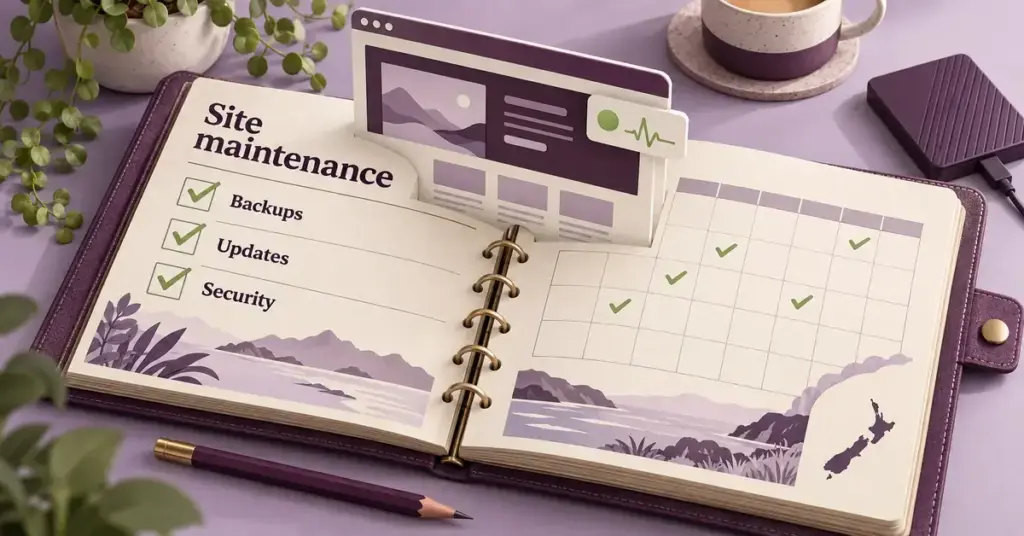
Launching a WordPress site is the easy part. Keeping it fast, secure and trouble-free over the months and years that follow is the work that actually protects your traffic, your search rankings and your customers’ data. A neglected WordPress site drifts: plugins fall out of date, the database bloats, backups silently stop running, and a small vulnerability eventually becomes a defaced homepage or a leaked contact list. This guide turns that open-ended worry into a simple, repeatable routine. Below you will find a plain-English WordPress maintenance checklist organised by how often each task needs doing, with extra attention to the things that matter for a New Zealand audience — local hosting, the Privacy Act 2020 and Core Web Vitals. Every technical term is explained the first time it appears.
Key Maintenance Tasks at a Glance
The essentials of a healthy WordPress site:
- Back up first, always — never update without a recent, verified backup stored off the server.
- Update weekly — plugins and themes weekly, major WordPress core and PHP checks monthly or quarterly.
- Monitor daily — automate uptime and security alerts so problems surface within hours.
- Test on staging — try significant changes on a private copy before they reach visitors.
- Watch speed and security — review Core Web Vitals and run malware scans monthly.
- Mind the Privacy Act 2020 — if you collect personal data, keeping the site patched is part of your duty of care.
Why ongoing WordPress maintenance matters
WordPress powers a large share of the world’s websites, which also makes it a constant target for automated attacks. The software itself is maintained carefully, but a typical site is really WordPress plus a theme and a dozen or more plugins, each written by a different developer and updated on its own schedule. Maintenance is the discipline of keeping all of those moving parts current, backed up and monitored so that a single outdated component cannot bring the whole site down.
Skipping it has real costs. Outdated plugins are the most common way WordPress sites get hacked. An un-optimised database and old PHP version make pages load slowly, which hurts both visitors and your Google ranking. And if a site does fall over without a recent backup, the only options are an expensive rebuild or paying to recover data. Regular maintenance is cheaper, calmer and far less dramatic than cleaning up after a failure.
If you are setting a site up for the first time, start with a WordPress hosting setup checklist — this maintenance guide picks up where that one finishes, covering what you do every week once the site is live rather than how to build it.
How a WordPress maintenance checklist is organised
Not every task needs doing at the same frequency. Checking that your site is online is a daily concern; auditing every plugin you have ever installed is a quarterly one. The simplest way to stay on top of maintenance is to group tasks into time buckets and work through each bucket on its own rhythm. The sections below follow that structure, and the downloadable schedule element summarises the whole routine in one table.
Two principles apply to the whole checklist. First, always back up before you change anything — especially before updates. Second, test significant changes on a staging site (a private copy of your live site) before applying them to the real one, so a bad update never reaches your visitors.
Daily tasks
Daily checks are quick and are best automated so they do not depend on you remembering. The aim is simply to catch disasters within hours rather than days.
- Uptime monitoring. Use a free service such as UptimeRobot or your host’s own monitoring to alert you if the site goes offline. Downtime that lasts minutes is an annoyance; downtime that lasts a day because nobody noticed is a lost-sales event.
- Security alerts. A security plugin (for example Wordfence or Sucuri) can email you about failed logins, brute-force attempts or changes to core files such as wp-config.php and .htaccess. Scan the subject lines for anything unusual.
- Backup confirmation. If your backups run nightly, confirm the most recent one actually completed. A backup you never verify is not a backup.
Weekly tasks
Weekly maintenance is where most of the hands-on work happens. Set aside a predictable slot — many site owners pick a quiet weekday morning — and work through the list.
- Apply plugin and theme updates. Take a fresh backup first, then update plugins and themes. Where possible, update on a staging copy and click through the key pages before pushing the changes live.
- Test core functionality. Submit your contact form, run a test checkout if you sell online, and load a few important pages on a phone. Updates occasionally break things in ways only a human notices.
- Clear spam and moderate comments. Empty the spam queue and approve or delete pending comments so the database does not fill with junk.
- Check for broken links. Broken internal and outbound links frustrate readers and weaken SEO. A link checker will flag them in minutes.
Monthly tasks
Monthly tasks are the deeper health checks — the ones that keep performance and security from quietly degrading.
- WordPress core updates. Minor WordPress releases install automatically and safely. For major releases, read the release notes, back up, and test on staging before updating, because major versions can affect theme and plugin compatibility.
- Optimise the database. Over time WordPress accumulates post revisions, expired transients and orphaned data. Cleaning these out (with a trusted optimisation plugin or through your host’s tools) keeps queries fast.
- Performance review. Run your home page and a key landing page through a speed test and check your Core Web Vitals — Google’s measures of loading speed, interactivity and visual stability. Slow results point to oversized images, too many plugins or a host that is struggling.
- Full security scan and user review. Run a complete malware scan and review the user accounts on the site, removing anyone who no longer needs access and confirming each remaining account has an appropriate role.
- SEO and analytics check. Glance at your search traffic and any crawl errors so you spot a problem — a drop, a de-indexed page — while it is still small.
Quarterly and annual tasks
A few tasks only need attention every few months, but they prevent long-term rot.
- Full plugin and theme audit (quarterly). Deactivate and delete anything you no longer use. Every active plugin is extra code to maintain and a potential entry point for attackers.
- PHP version check (quarterly). PHP is the programming language WordPress runs on, and each version is supported for only a few years. Confirm your host is running a current, supported release and plan an upgrade well before your version reaches end of life.
- SSL certificate check (quarterly). Make sure your HTTPS certificate is valid and auto-renewing so visitors never meet a browser security warning. If you need a refresher, see our guide on enabling SSL on NZ WordPress hosting.
- Test a backup restore (quarterly). Actually restore a backup to a staging site. This is the single most-skipped task and the one people most regret skipping.
- Hosting and plan review (annual). Compare your traffic and resource use against your plan. Growing sites outgrow cheap shared plans; shrinking ones may be overpaying.
Keeping core, plugins, themes and PHP up to date
Updates are the backbone of maintenance, so it is worth understanding the four layers and the current recommendations.
WordPress core
WordPress is on its 7.x line in 2026, with the 7.0 release having arrived in May 2026 and smaller security and maintenance releases following it. Minor and security releases apply automatically by default; leave that setting on. Treat major upgrades as a planned job with a backup and a staging test.
Plugins and themes
These are the most frequent updates and the most common source of both fixes and breakages. Update regularly, but never blindly on a live site. Remove any plugin or theme whose developer has abandoned it — an unmaintained extension is a security liability that will never be patched.
PHP
According to the official WordPress requirements, the recommended version is PHP 8.3 or greater, paired with MariaDB 10.11+ or MySQL 8.0+ for the database. The old minimum of PHP 7.4 still technically runs WordPress but has reached end of life, meaning it no longer receives security fixes — so running it is a risk, not a convenience. Most quality hosts let you switch PHP version from the control panel in a couple of clicks; test on staging first, because very old plugins occasionally need updating to suit a newer PHP.
Backups: the task you cannot skip
A reliable backup turns almost any disaster into a minor inconvenience. A good backup routine has three parts: backups run automatically on a sensible schedule (daily for busy or e-commerce sites, weekly for simple ones); copies are stored off the server, such as in cloud storage, so a server failure cannot take the backups with it; and you periodically restore one to confirm it works. Many New Zealand hosts include automated backups, and you can add your own layer with a backup plugin or through tools in your hosting control panel — our guide to cPanel for NZ WordPress hosting walks through where to find them.
Security and the New Zealand Privacy Act
Security maintenance and privacy compliance overlap heavily. The core habits are familiar: strong, unique passwords; two-factor authentication on admin accounts; limited login attempts; a reputable security plugin; and prompt updates. For a fuller treatment, see our WordPress hosting security best practices for NZ.
The New Zealand angle is the Privacy Act 2020. If your site collects any personal information — contact form submissions, customer accounts, newsletter sign-ups — you are legally expected to keep it secure with reasonable safeguards, and serious breaches that could cause harm must be reported to the Office of the Privacy Commissioner. In practical terms, regular updates, backups and security scans are not just good housekeeping; they are part of meeting that duty of care. Storing data with a New Zealand host can also simplify data-handling and reduce latency for local visitors.
Performance and Core Web Vitals
Maintenance and speed are linked: an un-maintained site is almost always a slow site. Keep an eye on image sizes (compress and correctly size them), caching (a caching plugin or a host with built-in caching such as LiteSpeed dramatically cuts load times), and plugin count. If performance keeps sliding despite good housekeeping, the host may be the bottleneck — our guide to the best WordPress hosting in NZ explains what to look for in faster, NVMe-based hosting.
Common maintenance mistakes
- Updating on the live site with no backup. One bad update and you have no safe point to return to.
- Never testing a restore. Discovering a backup is corrupt during an emergency is the worst possible time.
- Plugin hoarding. Keeping deactivated plugins installed leaves vulnerable code on the server.
- Ignoring PHP. Running an end-of-life PHP version for performance reasons trades speed for a serious security gap.
- Treating maintenance as a one-off. It is a routine, not a project. The value is in doing it consistently.
When something does break between scheduled checks, our guide to fixing common WordPress hosting issues covers the usual culprits and fixes.
DIY, plugins or a managed service?
How you run maintenance depends on your time and the stakes. A hobby blog can be maintained by hand in under an hour a week. A busy business or e-commerce site benefits from automation (uptime monitoring, scheduled backups and scans) plus a human who reviews the results and handles updates on staging. If the site is business-critical and you would rather not touch it, a managed WordPress host or a maintenance service will handle updates, backups and monitoring for a monthly fee — you trade cost for peace of mind. The checklist in this article works for all three approaches; only the question of who does it changes.
Maintenance Schedule
| Frequency | Key tasks | Typical effort |
|---|---|---|
| Daily | Uptime monitoring, security alerts, confirm last backup ran | Automated (minutes to review) |
| Weekly | Plugin and theme updates (after backup), test forms and checkout, clear spam, check broken links | 30–60 minutes |
| Monthly | Major core updates, database optimisation, performance and Core Web Vitals review, full malware scan, user and SEO check | 1–2 hours |
| Quarterly | Plugin and theme audit, PHP version check, SSL certificate check, test a backup restore | 1–2 hours |
| Annually | Review hosting plan against traffic and resource use | 30 minutes |
Disclaimer
This article is general information about website upkeep, not legal, security or compliance advice. Privacy obligations depend on your specific site and the data you collect. For guidance on the Privacy Act 2020 and breach reporting, consult the New Zealand Office of the Privacy Commissioner, and for help responding to a cyber incident, contact CERT NZ. Verify current software versions and hosting specifications against official sources before acting on them.
Sources
Frequently Asked Questions (FAQ)
How often should I update WordPress and its plugins?
Check for plugin and theme updates weekly and apply them after taking a backup, ideally testing on a staging copy first. Minor WordPress core and security releases install automatically and should be left on. Treat major WordPress releases as a planned monthly task with a backup and a compatibility test.
Do I really need backups if my host already backs up my site?
Yes. Host backups are a valuable safety net, but relying on a single provider is risky. Keep at least one independent copy stored off the server, such as in cloud storage, and periodically restore it to confirm it actually works. Redundancy is what makes recovery dependable.
How much time does WordPress maintenance take?
For a simple blog, the weekly routine takes well under an hour, with a slightly longer monthly session for deeper checks. Larger or e-commerce sites need more — often a few hours a month — though much of the routine (uptime monitoring, backups, scans) can be automated so your time goes to reviewing results and testing updates.
What happens if I ignore WordPress maintenance?
Over time the site slows down, the database bloats, and outdated plugins or an end-of-life PHP version open security holes. The most common outcomes are a hacked site, a damaging data breach, or downtime that costs traffic and sales. Catching these early through routine maintenance is far cheaper than fixing them after the fact.
Does hosting my WordPress site in New Zealand help with maintenance?
It can. A local host usually means lower latency for New Zealand visitors, better Core Web Vitals, and simpler data handling under the Privacy Act 2020. Many NZ hosts also bundle automated backups, caching and security monitoring, which reduces how much maintenance you have to do manually.