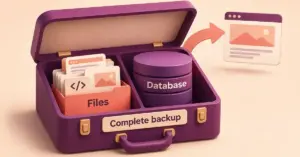
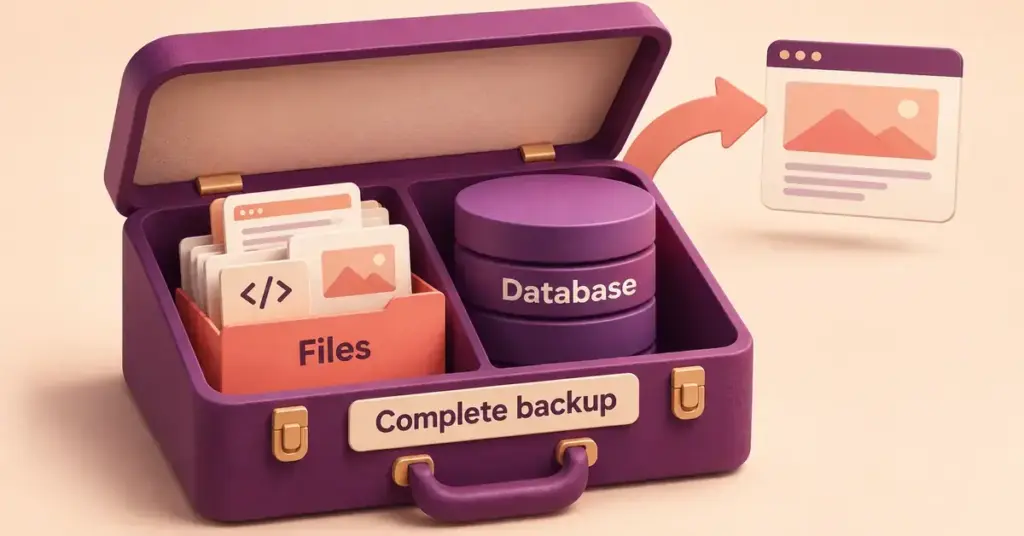
A backup is a complete, restorable copy of your website that you can put back if an update breaks the site, a plugin conflicts, you get hacked, or you simply make a mistake. Backing up a WordPress website means saving two things together: all of its files (WordPress itself, your theme, plugins and uploaded media) and its database (your posts, pages, comments and settings). There are three reliable ways to do this – by hand, with a plugin, or using your web host’s tools – and this guide walks through each so you can pick the one that fits your site.
Key Points
- A complete WordPress backup saves both your files (core, themes, plugins, uploads) and the MySQL database – taken together.
- The built-in Tools > Export is content only (a WXR/XML file); it is not a full backup.
- Three practical methods: manual (phpMyAdmin + FTP), a backup plugin (such as the free UpdraftPlus), or your host’s automatic/cPanel backups.
- Back up before every update, theme change or migration; daily for active sites, real-time for shops.
- Follow the 3-2-1 rule: 3 copies, on 2 storage types, with 1 kept off-site – and test a restore regularly.
What a complete WordPress backup actually includes
Before choosing a method, it helps to know what you are copying. A WordPress site is made of two separate parts, and a real backup captures both:
- Files – the WordPress core, your active and inactive themes and plugins, and the uploads folder that holds your images and documents. Key configuration files such as wp-config.php (your database connection details) and .htaccess live here too (your database connection settings and server rules).
- Database – a MySQL database that stores your written content, user accounts, comments and most settings. It lives outside the WordPress folder, so it has to be exported separately, usually as a .sql file.
A common beginner mistake is to assume the built-in Tools > Export screen makes a backup. It does not. That tool creates a WXR file (a type of XML file) containing your posts, pages, comments and categories, but it leaves out your themes, plugins, settings and the actual media files – it only stores links to them. It is useful for moving content between sites, but it is not a full backup. For protection you want the files and the database together.
Method 1: Manual backup with phpMyAdmin and FTP
A manual backup uses the tools in your hosting control panel and gives you a copy you own outright, with no plugin involved. It takes a few steps but no extra software. WordPress.org recommends exporting the database first, then copying the files.
Step 1: Export the database
Log in to your hosting control panel and open phpMyAdmin (the standard tool for managing MySQL databases). Select your site’s database in the left-hand list, click the Export tab, choose the Quick method and the SQL format, and download the file. You now have a complete copy of your content and settings.
Step 2: Copy the files
Connect to your server with an FTP program such as FileZilla, or use the File Manager in your control panel. Download the entire WordPress folder – usually public_html or www – to your computer. At minimum, make sure you capture the wp-content folder (themes, plugins and uploads) plus wp-config.php and .htaccess. Compress everything into a dated ZIP file so you can keep several versions.
To restore a manual backup you reverse the order: upload the files first, then import the .sql file back into the database through phpMyAdmin. If your database name, user or password changed, update wp-config.php to match. Manual backups suit confident users and one-off snapshots before big changes, but they are easy to forget, which is where plugins help.
Method 2: Backup plugins
A backup plugin runs inside WordPress, schedules the job automatically and can send copies straight to cloud storage such as Google Drive or Dropbox. For most site owners this is the simplest, safest option because it removes the human memory from the process.
The most widely installed free option is UpdraftPlus. Its free version (on 4 million-plus sites) makes manual and scheduled backups of your files and database and restores them with a few clicks, sending copies to Dropbox, Google Drive, Amazon S3, FTP, email and several other destinations. Paid tiers add incremental backups, automatic backups before updates, more storage targets and direct site-to-site migration. Other established choices include Duplicator (strong for cloning and moving sites), BackWPup, Solid Backups, the paid Jetpack VaultPress Backup service and BlogVault.
The table below compares the main options. Prices are indicative, quoted in US dollars and change often, so confirm the current figure on each vendor’s own page before you buy.
Backup Plugins Compared
| Tool | Type | Free version | Paid from (USD, indicative) | Stands out for |
|---|---|---|---|---|
| UpdraftPlus | Plugin | Yes – scheduled backups + cloud storage | Premium ~$70/yr | Most-installed free option; wide cloud storage support |
| Duplicator | Plugin | Yes – backup + migration | Pro from ~$79/yr | Site cloning and moving between hosts |
| BackWPup | Plugin | Yes | Pro ~$69/yr | Database-only option and many storage targets |
| Jetpack VaultPress Backup | Paid service | No | ~$10/mo | Real-time cloud backups with activity log |
| Solid Backups | Plugin | No | ~$99/yr | Scheduled off-site backups in the SolidWP suite |
| BlogVault | Paid service | No (trial) | ~$89/yr | Off-site storage with built-in staging |
Whichever plugin you choose, set it to back up on a schedule, send the copy to an off-site location rather than leaving it on the same server, and keep several recent versions. A backup that only exists on the server it is protecting will not help if that server fails. Scheduled backups are also a core item on any good WordPress maintenance checklist.
Method 3: Host and cPanel backups
Most hosting plans include some form of backup, and for many Kiwi site owners this is the easiest first line of defence. There are usually two flavours:
- Automatic host backups – many providers take daily or weekly snapshots of your whole account and keep them for a set number of days. On managed WordPress hosting these are often built in, with one-click restore from your dashboard.
- Control-panel backups – if your plan uses cPanel, the Backup and JetBackup tools let you download a full account backup or restore individual files and databases yourself. Our guide to cPanel for WordPress hosting covers where to find them.
Host backups are convenient, but treat them as one layer rather than your only one. Retention periods can be short, backups sometimes sit on the same infrastructure as your live site, and some budget plans charge to restore. Always confirm how far back your host’s backups go and keep at least one independent copy of your own. The same full-site copy is also what you hand over when migrating WordPress to an NZ host.
How often should you back up?
Match the frequency to how often your content changes:
- Small or static sites – a weekly backup is usually enough.
- Active blogs and business sites – back up daily.
- Online shops and busy forums – use real-time or hourly backups so you never lose an order or comment.
- Before any big change – always take a fresh backup before updating WordPress, a theme or a plugin, and before moving hosts.
A well-known guideline is the 3-2-1 rule: keep 3 copies of your site, on 2 different types of storage, with at least 1 stored off-site (for example in cloud storage or on your own computer). Keeping three to five recent versions means you can roll back even if the most recent backup is corrupted.
Store backups off the server – and test them
Where you keep a backup matters as much as making it. If your only copy lives on the same server as the live site, a hardware failure or compromise can take both at once. Send copies to separate cloud storage or download them locally. If your site collects customer details, remember that under the New Zealand Privacy Act 2020 you are responsible for keeping that data secure wherever the backup is stored – a point we expand on in our WordPress hosting security best practices guide.
Finally, a backup you have never restored is only a hope, not a plan. Every few months, restore a copy to a staging site or local environment to confirm the files and database are complete and the site loads. Testing is the only way to know your backup will work on the day you actually need it.
Disclaimer
This article is general information about protecting a WordPress website, not professional security or legal advice. Backup tools, features and prices change – confirm current details with each vendor and your web host. No backup method is guaranteed; always keep more than one copy and test that you can restore it. If your site stores personal information, you remain responsible for keeping that data secure under the New Zealand Privacy Act 2020, and CERT NZ publishes free guidance on backups and recovering from incidents.
Reference sources
Frequently Asked Questions (FAQ)
Is the WordPress Tools > Export feature a real backup?
No. The Export screen creates a WXR (XML) file of your posts, pages, comments and categories, but it does not include your themes, plugins, settings or the actual media files – it only stores links to them. It is handy for moving content between sites, but a true backup must also capture all of your files and the full MySQL database.
What is the easiest way for a beginner to back up WordPress?
Installing a free backup plugin such as UpdraftPlus is the simplest route. You set a schedule, connect a cloud storage account like Google Drive or Dropbox, and the plugin backs up your files and database automatically and restores them with a few clicks. Your host’s built-in or cPanel backups are a good additional layer.
Do I need to back up both the files and the database?
Yes. The files hold WordPress, your theme, plugins and uploaded media, while the database holds your written content, comments and settings. Restoring only one leaves you with a broken site, so a complete backup always includes both, taken at the same time.
How often should I back up my WordPress site?
Back up weekly for small, rarely changing sites and daily for active blogs or business sites. Shops and busy sites benefit from real-time or hourly backups. Whatever your routine, always take a fresh backup before updating WordPress, themes or plugins, or before switching hosts.
Where should I keep my backups?
Store at least one copy off the server your site runs on – in cloud storage or on your own computer – so a server failure cannot destroy the site and its backup together. Following the 3-2-1 rule (three copies, two storage types, one off-site) and keeping several recent versions gives you the best protection.