
Updating WordPress is the moment when many sites break — a plugin clashes with a new core version, a theme feature stops working, or a page suddenly shows a blank screen. The safe routine is straightforward: back up first, test major changes on a staging copy, then update core before working through plugins and themes one at a time. This guide walks New Zealand site owners through that routine without taking the site offline, plus what to do on the rare occasion something still goes wrong.
Safe update checklist
- Make a full backup of your files and database, and confirm you can restore it.
- Test major updates on a staging copy before touching the live site.
- Check plugin and theme changelogs and your PHP version for compatibility.
- Pause or clear caching so you see accurate results.
- Update WordPress core first, from Dashboard > Updates.
- Update plugins and themes one at a time, not all at once.
- Visit key pages — home, forms, login, checkout — after each update.
- Keep the latest backup until you are sure everything works.
Why WordPress updates sometimes break sites
A WordPress site is not one program. It is WordPress “core” (the software itself) plus any number of plugins (add-ons that give the site extra features) and a theme (the design). Those pieces are usually built by different developers, and an update to one can occasionally conflict with another.
Updates matter because they close security holes and fix bugs. WordPress only actively supports its most recent release — the latest version, 7.1.4, was published in October 2026 as a security release — so running old versions leaves known vulnerabilities open. The trade-off is that a new version can expose an incompatibility. Common causes of a broken update include:
- An outdated PHP version on the server (PHP is the programming language WordPress runs on).
- A plugin or theme that has not been updated to work with the new WordPress version.
- An abandoned plugin whose developer has stopped maintaining it.
- Custom code added directly to core or theme files, which an update overwrites.
Knowing the causes is useful, because the routine below is designed to catch each of them before it reaches your live site.
Before you update: build a safety net
The few minutes you spend preparing are what make an update safe. Do not skip this part, especially for major changes.
Back up your whole site first
A backup is your undo button. Make a full copy of both your files and your database, and — this is the step people forget — confirm you can actually restore it. An untested backup is just a hope. If you are not sure how, our guide on how to back up a WordPress website covers manual, plugin and host-based methods. Keep that backup until you have confirmed the update worked.
Test major updates on a staging site
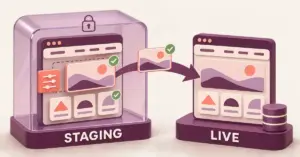
A staging site is a private copy of your live site where you can try changes without visitors seeing them. For big changes — a major WordPress core version, a page builder, or an online store running WooCommerce — apply the update on staging first and check everything works before repeating it on the live site. You do not need staging for routine minor updates — a good backup is enough for those — but it earns its keep for anything you would hesitate to apply straight to the live site. Many New Zealand hosts offer one-click staging; if yours does not, our walkthrough on how to create a WordPress staging site explains the options.
Check compatibility and your PHP version
Before you click update, read the changelog (the list of what changed) and the “tested up to” note on each plugin or theme page — it tells you which WordPress version the developer has checked it against. Also check your PHP version in your hosting control panel. WordPress currently recommends PHP 8.3 or newer, with a database of MariaDB 10.11+ or MySQL 8.4+. Older versions such as PHP 7.4 still run WordPress, but they have reached end-of-life, no longer receive security fixes, and can cause errors with newer releases. If your host is still on an old version, ask them to upgrade it before a major update.
Pause caching
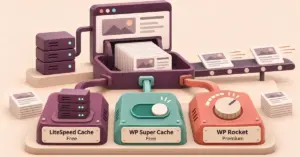
Caching stores a saved copy of your pages to serve them faster, which means you might keep seeing the old version after an update. Temporarily clear or pause your cache so you are testing the real, updated site. If you are unsure which tool you use, our comparison of WordPress caching plugins can help you identify and manage it.
How to update WordPress safely, step by step
With a verified backup in place, work through the updates in a deliberate order rather than clicking everything at once.
Update WordPress core first
Go to Dashboard > Updates in your WordPress admin area and apply any WordPress core update first. Updating core before plugins and themes means the add-ons are then running against the current version of WordPress, which is how their developers expect them to behave.
Update plugins and themes one at a time
Avoid the tempting “Update All” button on a live site. Update one plugin or theme, then move on to the next. If something breaks, you will know exactly which update caused it instead of having to unpick a dozen changes at once. Prioritise active, well-maintained plugins and anything flagged as a security update.
Test key pages after each change
After each update, open the pages that matter most and confirm they still work: your homepage, contact and booking forms, the login screen, and — for a shop — the cart and checkout. Clear your cache again so you see the live result, and re-enable anything you paused. Catching a problem here, before you move to the next update, keeps every issue small and easy to trace.
How WordPress automatic updates work
WordPress can apply some updates on its own, and understanding the defaults helps you decide what to automate.
- Minor core updates (small security and maintenance releases, such as 7.1.3 to 7.1.4) are applied automatically by default. These are low-risk and worth leaving on.
- Major core updates (such as a jump to the next main version) are opt-in — you choose when to apply them.
- Plugins and themes do not auto-update unless you switch it on per item.
WordPress also has safety nets built in. Core updates have been able to roll themselves back after a failure since version 3.7. Since WordPress 6.6, automatic plugin updates are protected too: after updating, WordPress quietly loads your homepage to check for a fatal error, and if it finds one it reverts the plugin to the previous version, enables maintenance mode during the process, and emails your site’s admin address. These features reduce risk, but they do not replace a backup — enabling automatic minor updates is sensible for most sites, while major-version and plugin automation suits simpler sites more than complex or e-commerce ones.
What to do if an update breaks your site
Occasionally a site still goes wrong — often a “white screen” or a message saying there has been a critical error. Stay calm and work through these options.
- Use Recovery Mode. Since WordPress 5.2, a fatal error triggers Recovery Mode: WordPress emails your admin address a special link that lets you log in with the faulty plugin or theme paused, so you can fix or remove it. Check your inbox (and spam folder) for that email.
- Restore your backup. If you cannot get in, roll back to the backup you made before the update. This is the fastest way to get a live site working again.
- Deactivate the culprit. If you can reach the dashboard, deactivate the plugin or theme you updated last. If you cannot, use your host’s file manager or an FTP connection to rename the plugin’s folder in wp-content/plugins, which deactivates it.
- Switch to a default theme. If a theme update caused the problem, temporarily activating a default WordPress theme will usually restore access.
If the same errors keep appearing or they look server-related rather than plugin-related, our guide to fixing common WordPress hosting issues covers the next steps and when to contact your host.
How often should you update WordPress?
Apply security updates promptly — because only the latest version is supported, delaying them leaves the site exposed. For everything else, a steady rhythm works better than occasional big catch-ups: check for updates on a regular schedule (weekly is a good starting point for most small sites), make your backup, and work through the routine above. Building this into a wider WordPress maintenance checklist alongside backups, security checks and performance keeps the whole site healthy and makes each update smaller and less dramatic.
Sources
- Updating WordPress documentation (WordPress.org)
- Enabling auto-updates for plugins and themes (WordPress.org)
- Upgrading WordPress – extended instructions (WordPress.org Developer)
- WordPress 7.1.4 release notes (WordPress.org)
- WordPress hosting requirements (WordPress.org)
- PHP support clarification, 2026 (Make WordPress Core)
- WordPress Recovery Mode documentation (WordPress.org)
- WordPress 6.6 Field Guide (Make WordPress Core)
- Rollback Auto-Update merge proposal (Make WordPress Core)
Frequently Asked Questions
Will updating WordPress delete my content or customisations?
Updating core, plugins or themes does not touch your posts, pages, images or settings, which live safely in your database and uploads folder. The one thing at risk is custom code added directly to a theme’s or plugin’s files, because an update overwrites them. If you have custom code, use a child theme or a code snippets plugin so your changes survive updates, and keep a backup either way.
Can I skip several WordPress versions and update all at once?
Yes — WordPress is designed to upgrade from an old version straight to the current one, so you do not need to install each in-between version. That said, a site that has fallen far behind is more likely to have out-of-date plugins, so the jump is riskier. Back up first, test on staging if you can, and update plugins and themes afterwards so everything matches the new core.
How do I turn on auto-updates for a single plugin?
In your dashboard go to Plugins > Installed Plugins. Each plugin row has an Automatic updates column with an Enable auto-updates link — click it to switch auto-updates on for just that plugin, and use the matching link later to turn it off. You can enable or disable several at once with the Bulk actions menu, and themes have the same toggle under Appearance > Themes. This per-item control has been part of WordPress since version 5.5, so you can automate the plugins you trust while updating the rest by hand.